
No products in the cart.
- Published: Dec 31, 2022 | Updated: Jul 11, 2023

Configurable product swatches not displayed disabled out when out of stock
In this article, we are going to fix the problem:
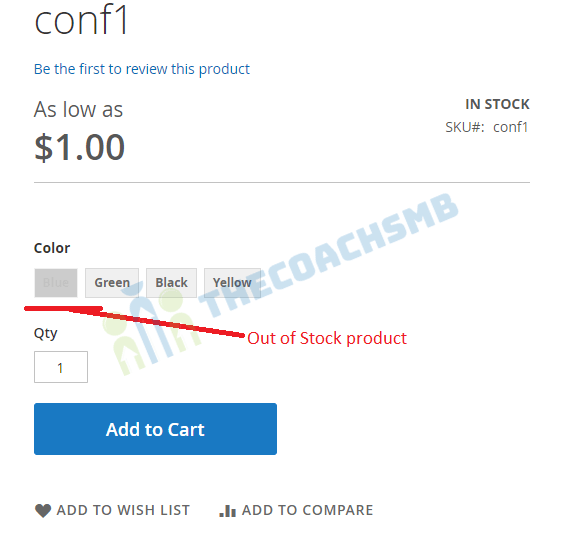
If the attribute is text swatch then out of stock products does not display as disabled in magento2.
Let’s follow the steps :-
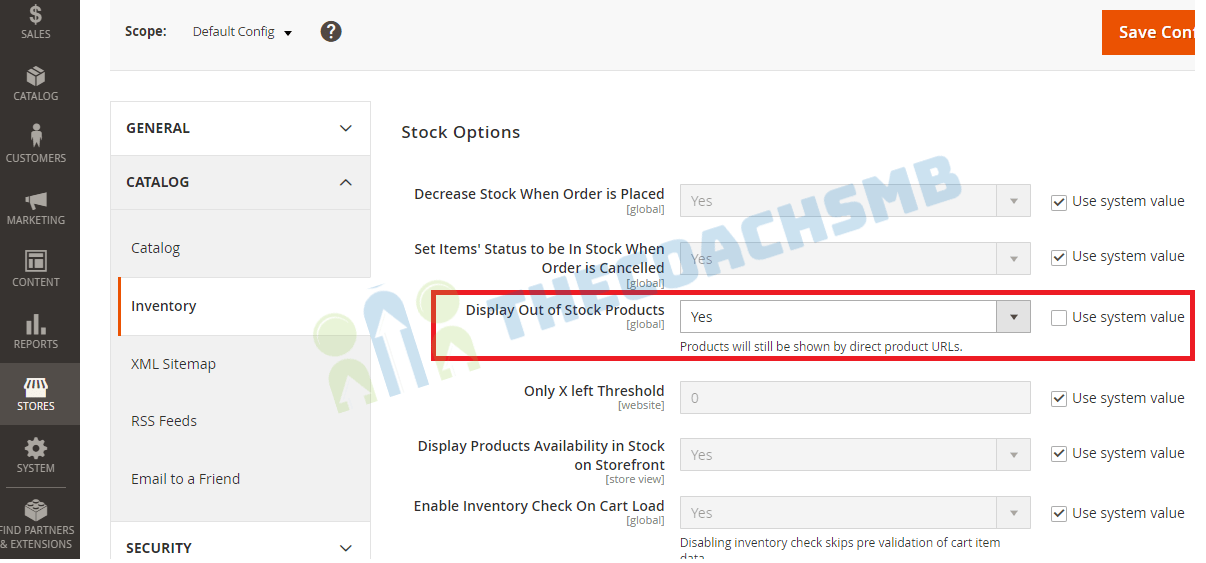
Step 1: Enable “Display Out of Stock Products” settings
Login into the admin panel, Then Store -> Configuration -> Catalog -> Inventory and then
Display Out of Stock Products – Yes
Then Lets build the module to show out of stock options as disabled..
Step 2: Create and Declare the Module
Create the following folders in the magento project root directory (ex. – C:\xampp\htdocs\magento2):
- app/code/Thecoachsmb
- app/code/Thecoachsmb/OutOfSTockProducts
It is necessary to create app/code/Thecoachsmb/OutOfSTockProducts/etc folder and add the module.xml file in it.
The content would be : –
<?xml version="1.0"?>
<config xmlns:xsi="http://www.w3.org/2001/XMLSchema-instance" xsi:noNamespaceSchemaLocation="urn:magento:framework:Module/etc/module.xsd">
<module name="Thecoachsmb_OutOfSTockProducts" >
     <sequence>
         <module name="Magento_Swatches"/>
     </sequence>
 </module>
</config>
Step 3: Registration of Module
To register the module, create a registration.php file in the app/code/Thecoachsmb/OutOfSTockProducts
Contents would be:
<?php
\Magento\Framework\Component\ComponentRegistrar::register(
	\Magento\Framework\Component\ComponentRegistrar::MODULE,
	'Thecoachsmb_OutOfSTockProducts',
	__DIR__
);
Step 4: Extend the Js file
To register the module, create a requirejs-config.js file in the app/code/Thecoachsmb/OutOfSTockProducts/view/frontend/
Contents would be:
var config = {
    config: {
        mixins: {
            'Magento_Swatches/js/swatch-renderer': {
                'Thecoachsmb_OutOfSTockProducts/js/swatch-renderer-mixin': true
            }
        }
    }
};
Step 5: Show out of stock products in grey disabled
To register the module, create a swatch-renderer-mixin.js file in the app/code/Thecoachsmb/OutOfSTockProducts/view/frontend/web/js
Contents would be:
define([
    'jquery'
], function ($) {
    'use strict';
    return function (widget) {
        console.log('Hello from SwatchExtend');
        $.widget('mage.SwatchRenderer', widget, {
            _RenderSwatchOptions: function (config, controlId) {
                var optionConfig = this.options.jsonSwatchConfig[config.id],
                    optionClass = this.options.classes.optionClass,
                    sizeConfig = this.options.jsonSwatchImageSizeConfig,
                    moreLimit = parseInt(this.options.numberToShow, 10),
                    moreClass = this.options.classes.moreButton,
                    moreText = this.options.moreButtonText,
                    salableId = this.options.jsonConfig.salable[config.id],
                    countAttributes = 0,
                    html = '';

                if (!this.options.jsonSwatchConfig.hasOwnProperty(config.id)) {
                    return '';
                }

                $.each(config.options, function (index) {
                    var id,
                        type,
                        value,
                        thumb,
                        label,
                        width,
                        height,
                        attr,
                        swatchImageWidth,
                        swatchImageHeight;
                    if (!optionConfig.hasOwnProperty(this.id)) {
                        return '';
                    }

                    // Add more button
                    if (moreLimit === countAttributes++) {
                        html += '<a href="#" class="' + moreClass + '"><span>' + moreText + '</span></a>';
                    }

                    id = this.id;
                    type = parseInt(optionConfig[id].type, 10);
                    value = optionConfig[id].hasOwnProperty('value') ?
                        $('<i></i>').text(optionConfig[id].value).html() : '';

                    thumb = optionConfig[id].hasOwnProperty('thumb') ? optionConfig[id].thumb : '';
                    width = _.has(sizeConfig, 'swatchThumb') ? sizeConfig.swatchThumb.width : 110;
                    height = _.has(sizeConfig, 'swatchThumb') ? sizeConfig.swatchThumb.height : 90;
                    label = this.label ? $('<i></i>').text(this.label).html() : '';

                    attr =
                        ' id="' + controlId + '-item-' + id + '"' +
                        ' index="' + index + '"' +
                        ' aria-checked="false"' +
                        ' aria-describedby="' + controlId + '"' +
                        ' tabindex="0"' +
                        ' data-option-type="' + type + '"' +
                        ' data-option-id="' + id + '"' +
                        ' data-option-label="' + label + '"' +
                        ' aria-label="' + label + '"' +
                        ' role="option"' +
                        ' data-thumb-width="' + width + '"' +
                        ' data-thumb-height="' + height + '"';

                    attr += thumb !== '' ? ' data-option-tooltip-thumb="' + thumb + '"' : '';
                    attr += value !== '' ? ' data-option-tooltip-value="' + value + '"' : '';
                    swatchImageWidth = _.has(sizeConfig, 'swatchImage') ? sizeConfig.swatchImage.width : 30;
                    swatchImageHeight = _.has(sizeConfig, 'swatchImage') ? sizeConfig.swatchImage.height : 20;

                    if (!this.hasOwnProperty('products') || this.products.length <= 0) {
                        attr += ' data-option-empty="true"';
                    }

                    if (type === 0) {
                        // Text
                        var disableCss = '';
                        if (!salableId[this.id]) {
                            disableCss = 'style="pointer-events:none; background:grey; opacity:0.4;"';
                        }

                        html += '<div ' + disableCss + ' class="' + optionClass + ' text" ' + attr + '>' + (value ? value : label) +
                            '</div>';
                    } else if (type === 1) {
                        // Color
                        html += '<div class="' + optionClass + ' color" ' + attr +
                            ' style="background: ' + value +
                            ' no-repeat center; background-size: initial;">' + '' +
                            '</div>';
                    } else if (type === 2) {
                        // Image
                        html += '<div class="' + optionClass + ' image" ' + attr +
                            ' style="background: url(' + value + ') no-repeat center; background-size: initial;width:' +
                            swatchImageWidth + 'px; height:' + swatchImageHeight + 'px">' + '' +
                            '</div>';
                    } else if (type === 3) {
                        // Clear
                        html += '<div class="' + optionClass + '" ' + attr + '></div>';
                    } else {
                        // Default
                        html += '<div class="' + optionClass + '" ' + attr + '>' + label + '</div>';
                    }
                });
                return html;
            }
        });

        return $.mage.SwatchRenderer;

    }

});
Run the below command
php bin/magento se:up && php bin/magento se:s:d -f
You will get the output as below
Conclusion:
In this article, we have implemented the functionality of showing out of stock products on the frontend.
Hope this article will help you !!
Thank You.

Cheers