
No products in the cart.
- Published: Mar 25, 2021 | Updated: May 26, 2023

Solved:- This is not implemented, as it is not possible to implement Argon2i with acceptable performance in pure-PHP
6 Steps to Install Magento 2.4.3 on XAMPP Windows Using Composer
While installing magento2 on windows with Xampp, we can get following error. So resolve the issue read the full details.
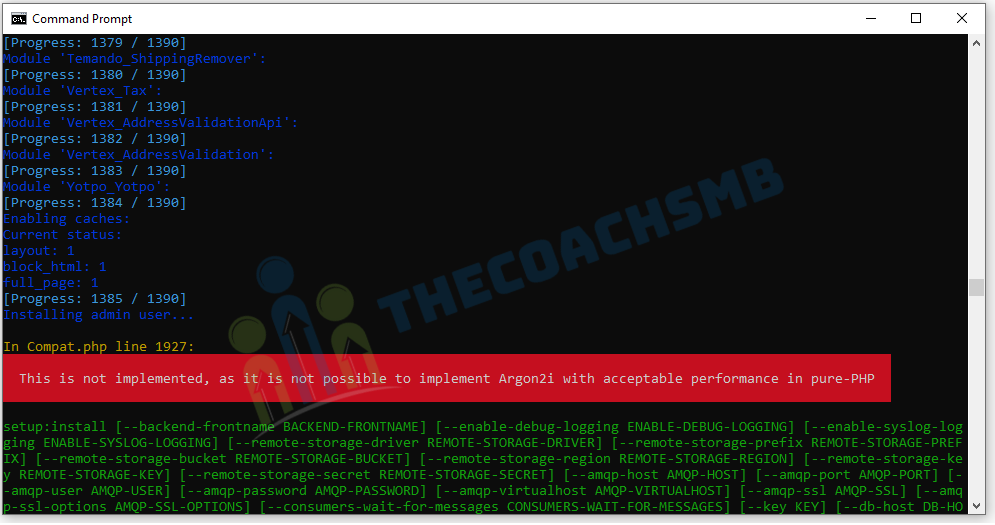
Scenario 1: – While Magento 2 Install
In compat.php line 1927: This is not implemented, as it is not possible to implement Argon2i with acceptable performance in pure-PHP
Scenario 2:- While Login in the Magneto 2 Admin Panel
For both the scenarios, here are the solutions:
Solutions:-
Solution 1:
This error occurs means sodium extension not enabled in php.ini file, enable it and re-run install command in the command prompt.
Quick tip: You can quickly open php.ini on Xampp interface with this button
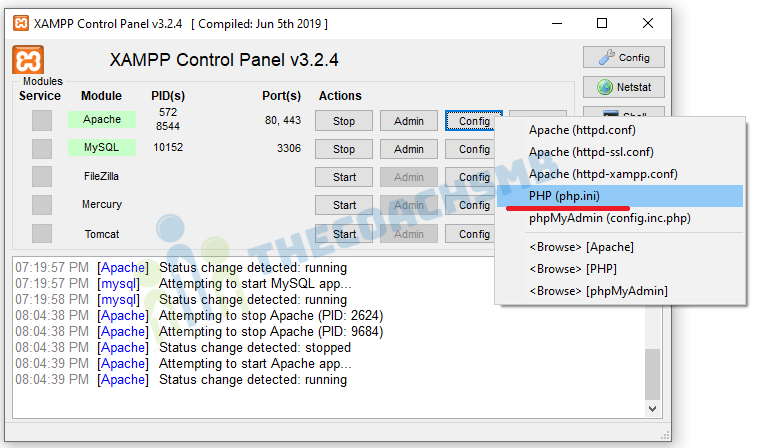
[PHP]
extension=sodium
Remove semicolon from the beginning of the line ;extension=sodium which enables it. Then restart Apache means stop and start Apache. That’s it.
Solution 2:
Perform following steps to solve this error.
- Remove semicolon from the beginning of the line ;extension=sodium from php.ini which enables it.
- Copy C:\xampp\php\libsodium.dll to C:\xampp\apache\bin\
- Restart Apache means stop and start Apache.
Solution 3:
We need to perform following steps :-
- Remove semicolon from the beginning of the line ;extension=sodium from php.ini which enables it.
- Copy C:\xampp\php\libsodium.dll to C:\xampp\
- Copy C:\xampp\php\libsodium.dll to C:\xampp\php\ext\
- Copy C:\xampp\php\libsodium.dll to C:\xampp\apache\bin\
- Restart Apache and check now.
Solution 4:
To fix this issue, put the following code in the \xampp\apache\conf\extra\httpd-xampp.conf file in the pub folder
Save the file. Restart Apache and check now.
Conclusion:
In this article different solutions has been given. Please do comment below mentioning which solution worked for you.

How to install Sodium extension in PHP-8.1
I am getting error white setup the Magento 2.4.4
Thanks for contacting Gautam, please follow below steps:
1. Remove semicolon from the beginning of the line ;extension=sodium from php.ini which enables it.
2. Copy (wherever you have installed xampp that drive )D:\xampp8.1\php\libsodium.dll to D:\xampp8.1\apache\bin\
3. Restart Apache means stop and start Apache.
Hey sonal, I have tried all the above solutions but I am not able to fix this, do you have any other solution? PS i have wamp
Where are you facing this issue. In Admin or frontend? At which command, you are facing it?
Thank you very much Sonal for this great article. Solution 2 worked for me, I was missing copying the dll file to the apache/bin folder.
HI!, Solution number 2, work with me!, It works like a charm now!, thank you very much for your help!
Thank you so much for the feedback Albert. !!