
No products in the cart.
- Published: Aug 18, 2026

How to Check Magento Extension Compatibility Before You Upgrade
Table of Contents
Every Magento upgrade eventually comes down to the same question: which of your extensions are actually going to survive it.
That was the first warning sign in When Should You Upgrade Magento? 7 Warning Signs Your Store Can’t Ignore extensions quietly throwing warnings nobody’s gotten around to addressing. This is the practical follow-up. Not “here’s why it matters,” but “here’s how you actually go check,” before you’re mid-upgrade and finding out the hard way.
Why This Step Gets Skipped
Most teams don’t skip the compatibility check because they don’t know it exists. They skip it because it’s tedious, there’s no single place that gives you a clean answer, and it’s tempting to just start the upgrade and deal with whatever breaks. That approach works fine right up until it doesn’t usually on a store with more than a handful of extensions, which is most stores.
Doing this properly takes a bit of focused effort up front. Skipping it tends to cost a lot more once something actually breaks in production.
Step 1: Find Out What Extensions You’re Actually Running
This sounds obvious, but most stores have more installed than anyone remembers. Extensions get added for one project, forgotten about, and never removed.
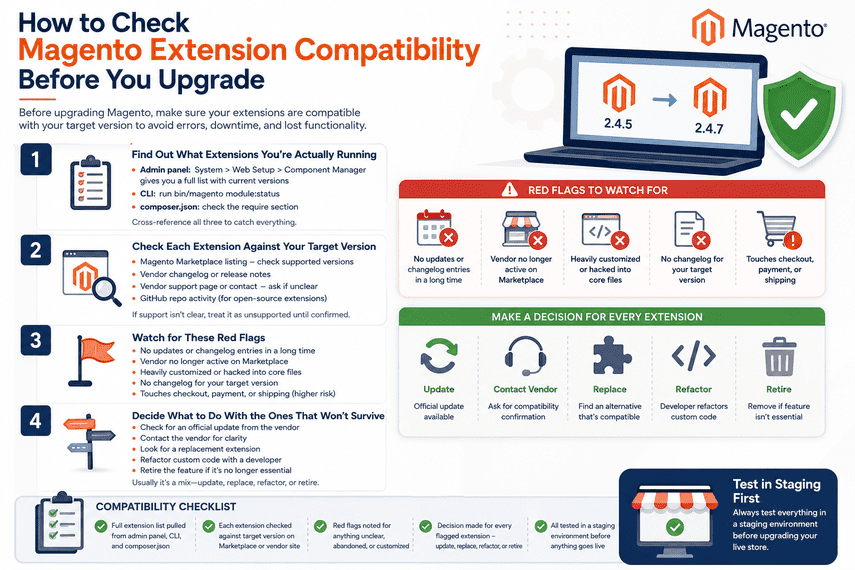
- Admin panel: System > Web Setup > Component Manager gives you a full list with current versions
- CLI: run bin/magento module:status to see enabled and disabled modules
- composer.json: check the require section for every third-party package your store depends on
Cross-reference all three. It’s common to find modules that show as disabled but are still sitting in the codebase, quietly adding risk without anyone using them.
Step 2: Check Each Extension Against Your Target Version
Once you have the full list, go through it one by one. This is the part people try to shortcut, and it’s exactly the part that matters most.
- Magento Marketplace listing — most extensions show which platform versions they officially support
- Vendor changelog or release notes — look for whether your target Magento version is explicitly mentioned
- Vendor support page or contact — if it’s not documented, ask directly before assuming
- GitHub repo activity, for open-source extensions — recent commits are a good proxy for active maintenance
If an extension doesn’t clearly state support for your target version, don’t assume it’ll be fine. Treat “unclear” the same as “unsupported” until you’ve confirmed otherwise.
Step 3: Watch for These Red Flags
Some signs are a stronger indicator of trouble than others. If you spot any of these during your review, flag that extension for closer attention.
- No visible updates or changelog entries in a long stretch of time
- The vendor is no longer listed as active on the Marketplace
- The extension has been heavily customized or hacked directly into core files
- No changelog entry matching your specific target Magento version
- The extension touches checkout, payment, or shipping — higher blast radius if something goes wrong
Step 4: Decide What to Do With the Ones That Won’t Survive
Not every incompatible extension needs the same fix. The right move depends on how critical the feature actually is.
- Check for an official update from the vendor first this is the easiest fix when it exists
- Contact the vendor directly if compatibility isn’t documented anywhere public
- Look for a replacement extension that covers the same functionality on your target version
- Have a developer refactor the custom code if it’s proprietary or business-critical
- Retire the feature entirely if it’s no longer essential to how the store actually runs
The mistake I see most often is treating this as an all-or-nothing decision. Usually it’s a mix update a few, replace one or two, and quietly retire something nobody’s used in a while.
A Simple Compatibility Checklist
Worth saving or printing before you start your own review:
- Full extension list pulled from admin panel, CLI, and composer.json
- Each extension checked against target version on Marketplace or vendor site
- Red flags noted for anything unclear, abandoned, or heavily customized
- A decision made for every flagged extension update, replace, refactor, or retire
- All of this tested in a staging environment before anything touches the live store
When DIY Checking Isn’t Enough
This process works well for stores with a modest, well-documented extension list. It gets a lot harder once you’re dealing with a dozen-plus extensions, custom-built modules with no documentation, or code that’s been touched by multiple developers over the years.
That’s usually the point where it’s worth having someone run a full technical audit instead of working through this list solo. A proper Magento upgrade service includes exactly this kind of compatibility review as a first step checking every extension, every customization, and every dependency against your target version before any changes are made to your live store.
Either way, the point of this whole exercise is the same: know what’s going to break before you upgrade, not after.
Frequently Asked Questions
How do I check Magento 2 extension compatibility with a new version?
Start with the Magento Marketplace listing for each extension most show which platform versions they officially support. For extensions not on the Marketplace, check the vendor’s own changelog or support page, or run a composer dependency check against your target version before attempting the upgrade.
Can I just remove an incompatible extension instead of replacing it?
Sometimes, if the feature it provides isn’t essential. But removing an extension can leave behind database tables, custom attributes, or dependent code that other parts of your store rely on. It’s worth understanding what the extension actually touches before deciding to drop it outright.
Do custom-built extensions need compatibility checks too?
Yes, and often more urgently than Marketplace extensions. Custom code doesn’t have a vendor tracking Magento’s core changes for you, so nobody is proactively telling you when something will break. These usually need a manual code review against the target version.
How is checking compatibility different for Adobe Commerce vs Magento Open Source?
The process is similar, but Adobe Commerce stores tend to carry more custom modules, B2B extensions, and third-party integrations, which means there’s usually more to check. Open Source stores are often simpler, but a lightly maintained Open Source store can carry just as much risk.
What if my extension vendor is no longer in business?
This happens more often than people expect. If there’s no active vendor and no community fork maintaining the code, your options are usually a manual code update, a replacement extension, or retiring that functionality. This is exactly the kind of thing worth flagging before you start the upgrade, not during it.
Is there a way to test extension compatibility without touching my live store?
Yes a staging environment is the standard approach. Clone your store, run the upgrade there first, and see what actually breaks before anything touches production. It’s the difference between finding problems on a copy of your store versus finding them in front of your customers.