
-
May, Fri, 2021

Solved- The account sign-in was incorrect or your account is disabled temporarily. Please wait and try again later.
In this article, we are going to learn how to solve below error while logging in Magento Admin Panel,
“you did not sign in correctly or your account is temporarily disabled”
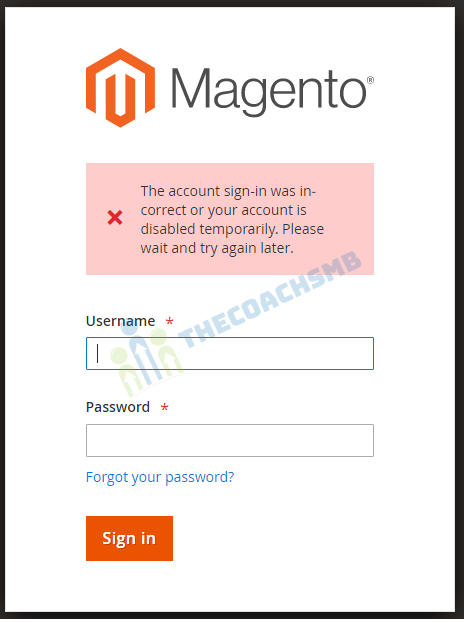
This error occurs due to Magento 2’s security system. Magento 2 will temporarily disable accounts that do not meet it’s password complexity requirements.
By default, in Magento 2, the password that meets security requirement must consist of:
- Uppercase letters
- Lowercase letters
- Numeric
- Special characters
- Minimum of 8 characters
The following are the solutions to this issue. Try any of them to see if it works for you.
Solution 1: Unlock the Account
Magento sometimes locks an account for security purposes. In this case, you can unlock it by going to your Magento 2 root folder in the command or terminal and run below command:
php bin/magento admin:user:unlock <username>

Example: php bin/magento admin:user:unlock admin
Solution2:-
Go to localhost/phpmyadmin/ on your browser and select your Magento 2 database.
After that use this syntax to change Magento 2 password using Mysql command
SET @salt = MD5(UNIX_TIMESTAMP());
UPDATE admin_user SET `password` = CONCAT(SHA2(CONCAT(@salt, 'NewP@ssword'), 256), ':', @salt, ':1') WHERE username = 'adminusername';NewP@sswordwith your desired password (must meet Magento 2 security requirement)adminusernamewith your admin account username
EX:-
SET @salt = MD5(UNIX_TIMESTAMP());
UPDATE admin_user SET `password` = CONCAT(SHA2(CONCAT(@salt, 'Admin@123456'), 256), ':', @salt, ':1') WHERE username = 'admin';
After running the command above, your admin account will be updated with the new password you set in CONCAT(SHA2(CONCAT(@salt, 'NewP@ssword'), 256)
Now you can login to your account normally.
Solution 3: Create a New Admin Account
If none of the above solutions work, create a new admin account. Run the command below to do so.
php bin/magento admin:user:create --admin-user="username" --admin-password="mypassword" --admin-email="thecoachsmb@gmail.com" --admin-firstname="Admin" --admin-lastname="Admin"

php bin/magento admin:user:create --admin-user="admin" --admin-password="Admin@123456" --admin-email="thecoachsmb@gmail.com" --admin-firstname="Admin" --admin-lastname="Admin"
Cheers !!
Solution 4:
Perform following steps:-
-
- Remove semicolon from the beginning of the line ;extension=sodium from php.ini which enables it.
- Copy C:\xampp\php\libsodium.dll to C:\xampp\apache\bin\
- Restart Apache means stop and start Apache.
Solution 5:
Save the file
That’s it.
Happy Learning !!
Thank You !!

Solution #4 worked for me.
Thank you very, very much (I had been with this for hours)
Hi
I tried all three possible solutions suggested by you but still I am getting same error while login on admin panel.
and i am using server in Filezilla .
Could you please help me here?
please check the var/log/system.log file for error while login
tried all the solutions none worked
Please run following query:
1. php bin/magento setup:upgrade
2. php bin/magento setup:static-content:deploy -f
3. php bin/magento clear:cache
Then try login. If this does not work, connect me on What’sup or Skype
Hi
I tried all three possible solutions suggested by you but still I am getting same error while login on admin panel.
Could you please help me here?
Regards,
Ravi Ranjan
Perform following steps:-
1. Remove semicolon from the beginning of the line ;extension=sodium from php.ini which enables it.
2. Copy C:\xampp\php\libsodium.dll to C:\xampp\apache\bin\
3. Restart Apache means stop and start Apache.
That’s it.
Thank You !!