

-
Sep, Thu, 2021

Solved – Forbidden You don’t have permission to access this resource. Apache/2.4.48 (Win64) OpenSSL/1.1.1k PHP/7.4.22 Server at localhost Port 80
Table of Contents
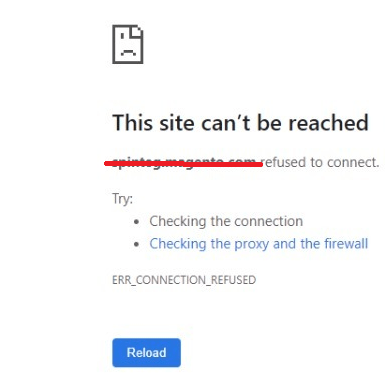
If you meet with “Solved – Forbidden You don’t have permission to access this resource. Apache/2.4.48 (Win64) OpenSSL/1.1.1k PHP/7.4.22 Server at localhost Port 80” error.
OR
Requirement: –
Assuming that you have installed magento2 successfully on Windows.
In this article, lets quickly fix the issue/error which comes while accessing the base url of the site.
Solution:
There are only 4 steps to resolve this:-
<VirtualHost *:80>
    DocumentRoot "C:/xampp/htdocs/folder_name/pub"
    ServerName yourname.magento.com
</VirtualHost> <VirtualHost *:80>
    DocumentRoot "C:/xampp/htdocs"
    ServerName localhost
</VirtualHost>Base URl for Magento2.4.1 : – DocumentRoot "C:/xampp/htdocs/folder_name"
In this way we have set the document root of your magent2 directory where we have installed magento2.
2. Add domain in the Hosts file
Now, Open notepad with “Run as administrator”.
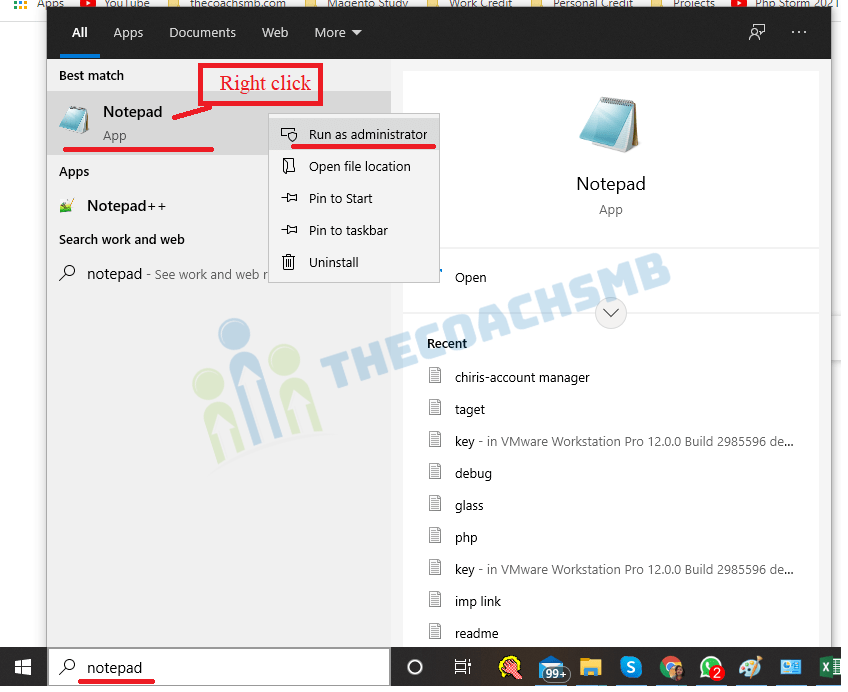
lets open C:\Windows\System32\drivers\etc\hosts file in notepad and add the below line at the bottom of the file.
127.0.0.1 yourname.magento.com
Restart apache to apply php settings by click on apache Stop and Start button on XAMPP
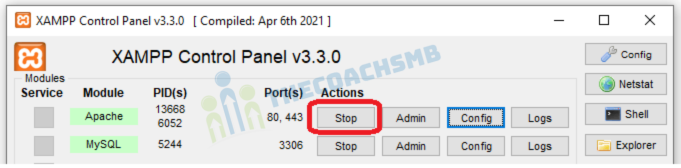
Make sure Elasticsearch, Apache, Mysql all are running.
3. Set domain in Env.php file
Open the app/etc/env.php file – search for “‘downloadable_domains'” in this file. Update the correct domain url there.
Like This –
‘downloadable_domains’ => [
'yourname.magento.com'
],
4. Update the Base url in the database table
Open the localhost/phpmyadmin/ in the browser, select the database and in the SQL Queries, enter below command
UPDATE `core_config_data` SET value='http://yourname.magento.com/' WHERE path='web/unsecure/base_url';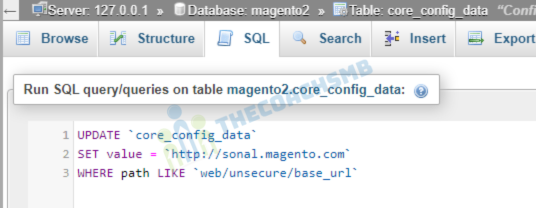
5. Clear Cache :
Run the command: php bin/magento c:f
Watch the below video for step by step guide : –
Conclusion:
In this article, we have fixed the issue with 4 simple steps. Hope this helps you. Please comment below giving feedback.