
No products in the cart.

- Published: Jul 22, 2021 | Updated: May 25, 2023

Solved: Content Security Policy Warnings in Magento 2
Sample Issue:
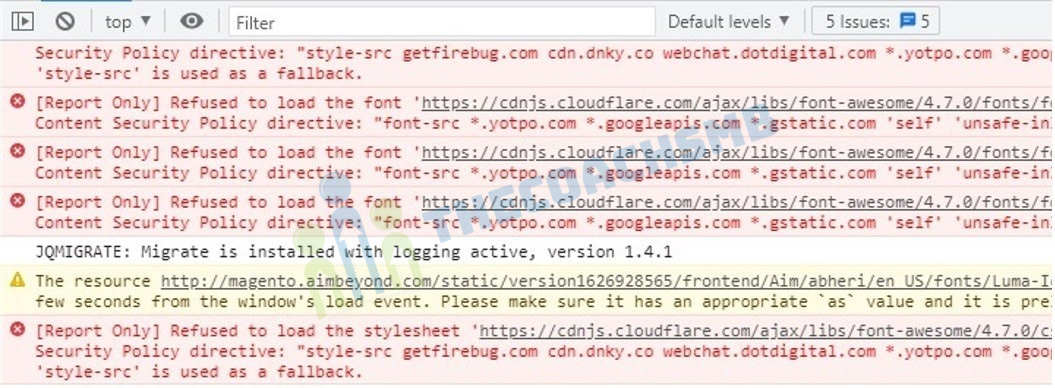
Solution:-
To resolve the we need to override the csp_whitelist.xml file present in the module_csp module.
To override, we need to create the custom module.
So let’s start creating it,
Step 1: Create Magento 2 Module Structure
1. Create the following folders in the magento project root directory (ex. – C:\xampp\htdocs\magento2):
- app/code/Thecoachsmb
- app/code/Thecoachsmb/Cspmodule
The Thecoachsmb folder is the module’s VendorName, and Cspmodule is the ModuleName.
Note: If you don’t have the code folder in your app directory, create it manually.
Now, create app/code/Thecoachsmb/Cspmodule/composer.json:
Contents would be:
{}
This file will be loaded by Composer every-time you run it even though we are not actually using Composer with our module.
Step 2: Declaration of Module
It is necessary to create etc folder and add the module.xml file in it
app/code/Thecoachsmb/Cspmodule/etc/module.xml
Contents would be:
<?xml version="1.0"?>
<config xmlns:xsi="http://www.w3.org/2001/XMLSchema-instance" xsi:noNamespaceSchemaLocation="urn:magento:framework:Module/etc/module.xsd">
<module name="Thecoachsmb_Cspmodule" setup_version="1.0.0">
 </module>
</config>
Step 3: Registration of Module
To register the module, create a registration.php file in the app/code/Thecoachsmb/Cspmodule/registration.php
Contents would be:
<?php
\Magento\Framework\Component\ComponentRegistrar::register(
	\Magento\Framework\Component\ComponentRegistrar::MODULE,
	'Thecoachsmb_Cspmodule',
	__DIR__
);
Step 4: Activate the Module
Now its time to enable our module.
So lets run the command to enable our module:
php bin/magento module:enable Thecoachsmb_Cspmodule
Now that you have enabled the module first time, so you have to upgrade the database of the module by using this command line:
php bin/magento setup:upgrade
Step 5: Create csp_whitelist.xml to whitelist properties
In the file app/code/Thecoachsmb/Cspmodule/etc/csp_whitelist.xml , write the content as below…
If you have error in the third party assets like css, js then add that domain name here. In my case, I am getting error in the third part css – https://cdnjs.cloudfare.com/ as sown in the above error.
<?xml version=“1.0”?> <csp_whitelist xmlns:xsi=“http://www.w3.org/2001/XMLSchema-instance” xsi:noNamespaceSchemaLocation=“urn:magento:module:Magento_Csp/etc/csp_whitelist.xsd”> <policies> <policy id=“script-src”> <values> <value id=“cloudflare” type=“host”>*.cloudflare.com</value> </values> </policy> <policy id=“style-src”> <values> <value id=“cloudflare” type=“host”>*.cloudflare.com</value> </values> </policy> <policy id=“img-src”> <values> <value id=“cloudflare” type=“host”>*.cloudflare.com</value> </values> </policy> <policy id=“connect-src”> <values> <value id=“cloudflare” type=“host”>*.cloudflare.com</value> </values> </policy> <policy id=“font-src”> <values> <value id=“cloudflare” type=“host”>*.cloudflare.com</value> </values> </policy> </policies> </csp_whitelist> |
Like this, you can add your third party urls / domains to csp_whitelist.xml.
Here are some of the third party urls for your reference…
1 2 3 4 5 6 7 8 9 10 11 12 13 14 15 16 17 18 19 20 21 22 23 24 25 26 27 28 29 30 31 32 33 34 35 36 37 38 39 40 41 42 43 44 45 46 47 48 49 50 51 52 53 54 55 56 57 58 59 60 61 62 63 64 65 66 67 68 69 70 71 72 73 74 75 76 77 78 79 80 81 82 83 84 85 86 87 88 89 90 91 92 93 94 95 96 97 98 99 100 101 102 103 104 105 | <?xml version=“1.0”?> <csp_whitelist xmlns:xsi=“http://www.w3.org/2001/XMLSchema-instance” xsi:noNamespaceSchemaLocation=“urn:magento:module:Magento_Csp/etc/csp_whitelist.xsd”> <policies> <policy id=“script-src”> <values> <value id=“cloudflare” type=“host”>*.cloudflare.com</value> <value id=“twitter.com” type=“host”>*.twitter.com</value> <value id=“google-analytics” type=“host”>*.google-analytics.com</value> <value id=“twimg” type=“host”>*.twimg.com</value> <value id=“gstatic” type=“host”>*.gstatic.com</value> <value id=“trustedshops” type=“host”>*.trustedshops.com</value> <value id=“usercentrics” type=“host”>*.usercentrics.eu</value> <value id=“fontawesome” type=“host”>*.fontawesome.com</value> <value id=“bing” type=“host”>*.bing.com</value> <value id=“zopim” type=“host”>*.zopim.com</value> <value id=“zdassets” type=“host”>*.zdassets.com</value> <value id=“google” type=“host”>*.google.com</value> </values> </policy> <policy id=“style-src”> <values> <value id=“cloudflare” type=“host”>*.cloudflare.com</value> <value id=“googleapis” type=“host”>*.googleapis.com</value> <value id=“twitter.com” type=“host”>*.twitter.com</value> <value id=“twimg” type=“host”>*.twimg.com</value> <value id=“gstatic” type=“host”>*.gstatic.com</value> <value id=“typekit” type=“host”>*.typekit.net</value> <value id=“trustedshops” type=“host”>*.trustedshops.com</value> <value id=“fontawesome” type=“host”>*.fontawesome.com</value> <value id=“bing” type=“host”>*.bing.com</value> </values> </policy> <policy id=“img-src”> <values> <value id=“cloudflare” type=“host”>*.cloudflare.com</value> <value id=“klarna-base” type=“host”>*.klarna.com</value> <value id=“googleadservices” type=“host”>*.googleadservices.com</value> <value id=“google-analytics” type=“host”>*.google-analytics.com</value> <value id=“paypal” type=“host”>*.paypal.com</value> <value id=“twitter.com” type=“host”>*.twitter.com</value> <value id=“twimg” type=“host”>*.twimg.com</value> <value id=“vimeocdn” type=“host”>*.vimeocdn.com</value> <value id=“youtube-img” type=“host”>*.ytimg.com</value> <value id=“data” type=“host”>‘self’ data:</value> <value id=“fontawesome” type=“host”>*.bing.com</value> <value id=“zopim” type=“host”>*.zopim.com</value> <value id=“zopimio” type=“host”>*.zopim.io</value> <value id=“doubleclick” type=“host”>*.doubleclick.net</value> <value id=“google” type=“host”>*.google.com</value> <value id=“googlein” type=“host”>*.google.co.in</value> <value id=“mastercard” type=“host”>*.mastercard.com</value> </values> </policy> <policy id=“connect-src”> <values> <value id=“google-analytics” type=“host”>www.google-analytics.com</value> <value id=“cloudflare” type=“host”>*.cloudflare.com</value> <value id=“twitter.com” type=“host”>*.twitter.com</value> <value id=“paypal” type=“host”>*.paypal.com</value> <value id=“twimg” type=“host”>*.twimg.com</value> <value id=“zdassets” type=“host”>*.zdassets.com</value> <value id=“zopim” type=“host”>*.zopim.com</value> <value id=“zopimio” type=“host”>*.zopim.io</value> <value id=“mediator” type=“host”>wss://widget-mediator.zopim.com</value> <value id=“googleanalytics” type=“host”>*.google-analytics.com</value> <value id=“doubleclick” type=“host”>https://stats.g.doubleclick.net</value> </values> </policy> <policy id=“font-src”> <values> <value id=“cloudflare” type=“host”>*.cloudflare.com</value> <value id=“twitter.com” type=“host”>*.twitter.com</value> <value id=“gstatic” type=“host”>*.gstatic.com</value> <value id=“typekit” type=“host”>*.typekit.net</value> <value id=“twimg” type=“host”>*.twimg.com</value> <value id=“trustedshops” type=“host”>*.trustedshops.com</value> <value id=“googleapis” type=“host”>*.googleapis.com</value> <value id=“zopim” type=“host”>*.zopim.com</value> <value id=“zopimio” type=“host”>*.zopim.io</value> </values> </policy> <policy id=“frame-src”> <values> <value id=“youtube.com” type=“host”>https://www.youtube.com</value> <value id=“sandbox.paypal.com” type=“host”>http://www.sandbox.paypal.com</value> <value id=“paypal.com” type=“host”>www.paypal.com</value> <value id=“twitter.com” type=“host”>*.twitter.com</value> </values> </policy> <policy id=“media-src”> <values> <value id=“zopim” type=“host”>*.zopim.com</value> <value id=“zopimio” type=“host”>*.zopim.io</value> </values> </policy> <policy id=“form-action”> <values> <value id=“twitter.com” type=“host”>*.twitter.com</value> </values> </policy> </policies> </csp_whitelist> |
After this, clear cache of magento2 by running below command.
php bin/magento cache:flush
That’s it..
Hope this helped, do comment below giving feedback.
Happy Learning !!
Thank You !!